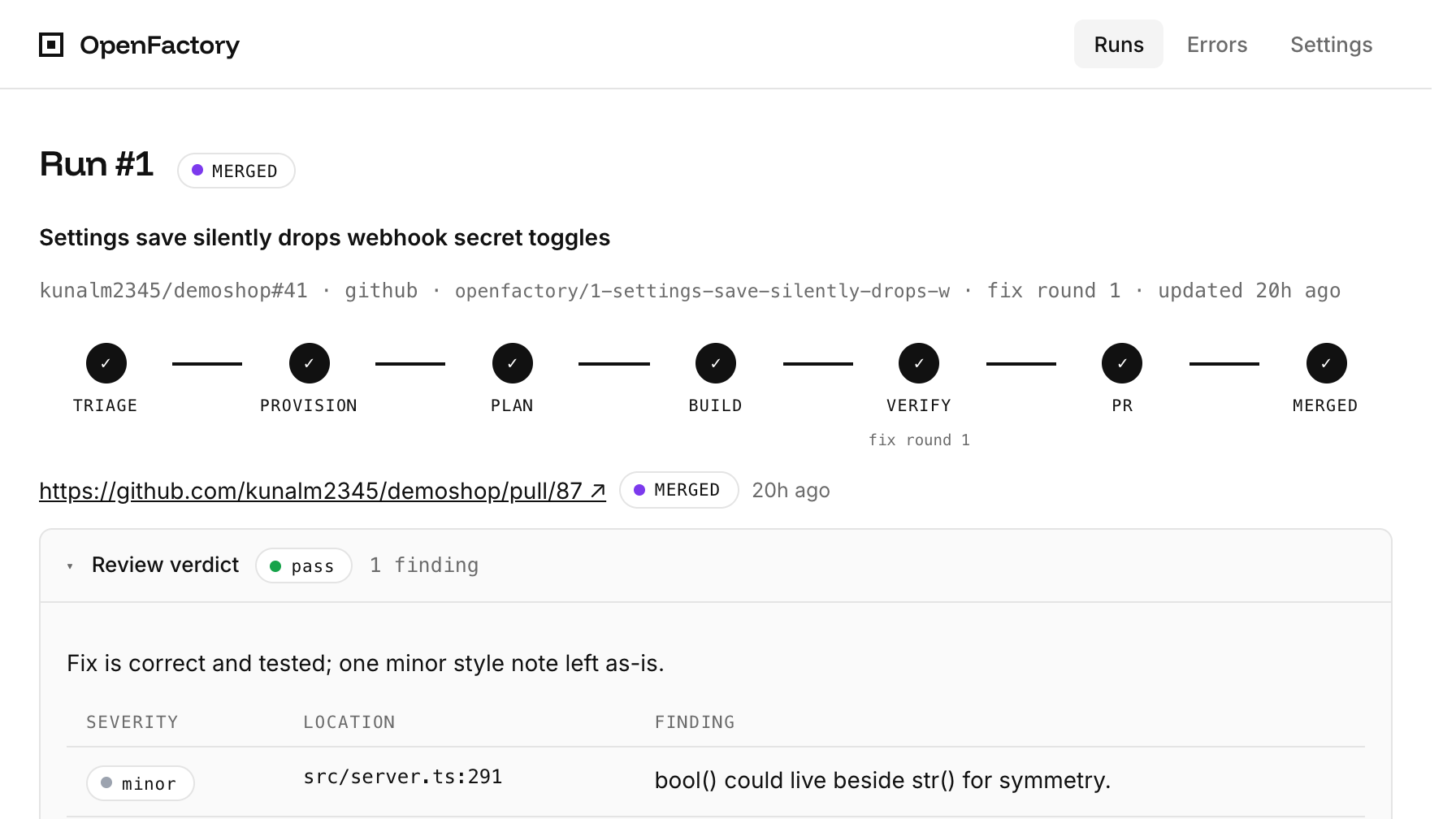
You already use Claude Code or Codex to build new features, fix bugs, write and run tests and review PRs. As a software developer, your job is now more of a manager that assigns tasks to agents and sees them through until the PR is merged.
A Software Factory just does all of this on its own without you having to prompting it. It takes in feature requests and bug reports, creates a plan on how to build it, runs an agent to build it, another to review the PR and hands it over to you to merge.
A lot of engineering teams are making their own versions of a Software Factory:
- Microsoft uses Copilot to turn maintainer-assigned issues into pull requests, with a reported 67.9% merge rate.
- Vercel built a webhook-to-queue pipeline that runs agents in isolated sandboxes and authors 25–35% of weekly merged PRs.
- Shopify built River, a Slack-native agent that opens PRs to their monorepo and it coauthored one in eight merged PRs.
- Stripe built Minions to run tasks in isolated devboxes and open PRs. Stripe reports 1,300 minion-produced PRs merged each week.
- Meta built a monitoring pipeline that cuts about 10 hours of investigation to about 30 minutes.
Each of those teams built something that fit how they work and the rules they have to follow. A Software Factory can’t be one size fits all, which is why we built OpenFactory.
Here is the OpenFactory repository on GitHub.
Introducing OpenFactory
OpenFactory is a template for building your own issue-to-PR pipeline on Ascii Box. Your software factory needs to adapt to your software team’s style of working. This template is designed to give you a good starting point that you can easily extend.
OpenFactory:
- Takes in Issues from Github, Linear and Sentry and lets a triage agent start build runs on individual sandboxes
- Runs an agent that plans, commits changes in a new branch, tests outcome, and reviews before making a PR.
- Handles creation and deletion of isolated sandboxes
Each run uses one sandbox for the build and another clean sandbox for review. OpenFactory forks both from the same template, moves the committed branch between them as a Git bundle, and stops them when it no longer needs them.
After you set it up, I’ll also show you how you can extend it.
Here’s how you can set it up for yourself:
Prerequisites
- An Ascii Box account. Sign up here.
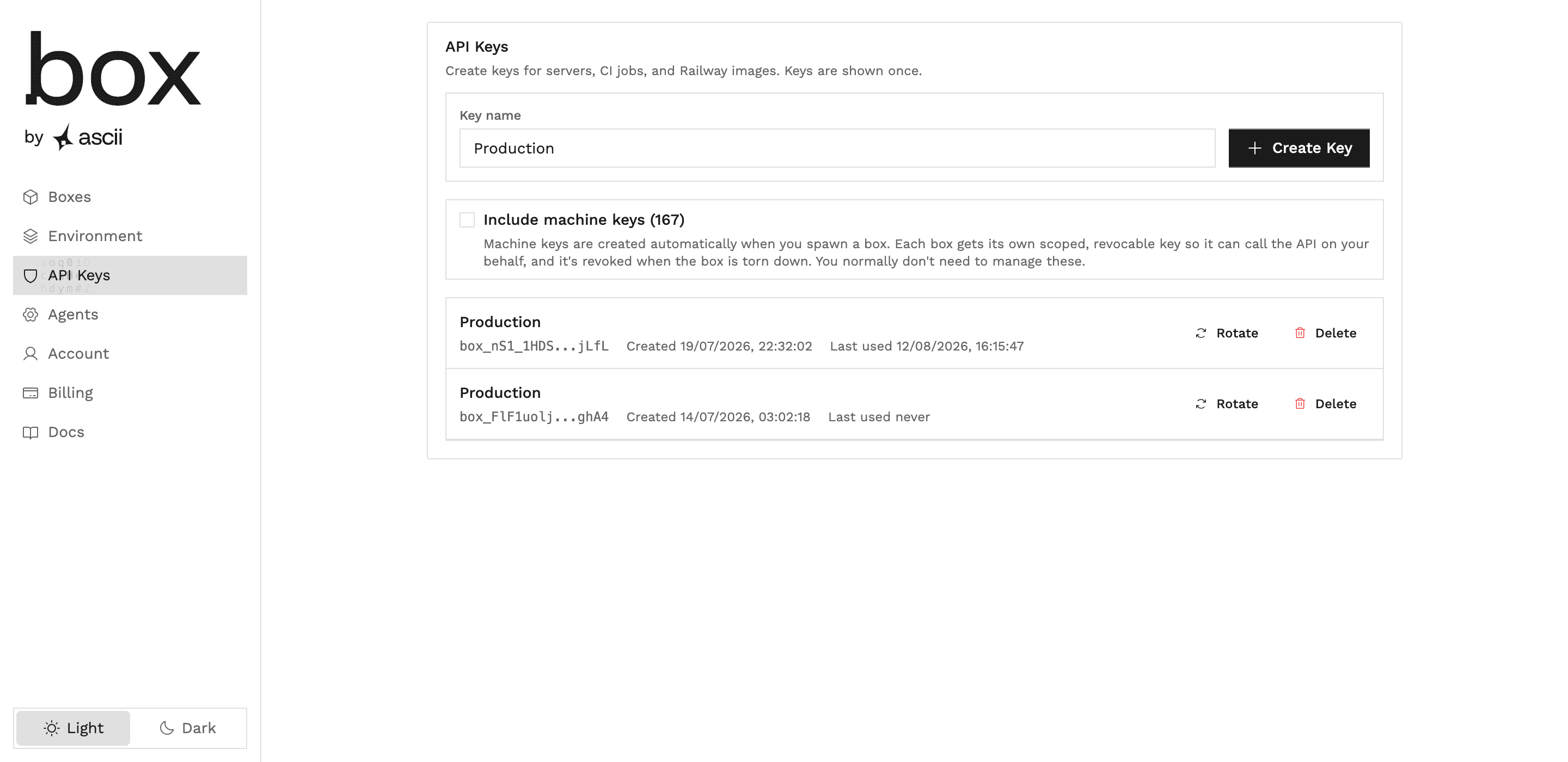
- A Box API key (saved locally as
ASCII_API_KEY). Create it in the Box dashboard’s API Keys tab. - The
boxCLI installed and logged in. - A GitHub repository for this OpenFactory instance.
- A fine-grained GitHub token for that repository with exactly three repository permissions: Metadata set to read, Contents set to read and write, and Pull requests set to read and write.
Setting up the factory
There are four things to get in place:
- You’ll need an orchestrating agent that keeps the pipeline moving.
- The sandbox environment supplies the account-level credentials and agent connections.
- Build environments come from a repository-ready template.
- Last, the factory still needs the rest of the access so it can receive work and deliver reviewed branches.
1. Starting the orchestrator
OpenFactory’s orchestrator lives on a continuously running factory Box. It watches the queue, starts each phase, and serves the dashboard.
Clone the repository locally, then run bootstrap:
git clone https://github.com/kunalm2345/openfactory
cd openfactory
ASCII_API_KEY=box_… npm run bootstrap
This verifies the box CLI session, creates the factory Box with auto-stop disabled, brings its Node release up to version 24 when needed, installs OpenFactory as a systemd service, and exposes the dashboard over a stable HTTPS address.
Save the dashboard URL, DASHBOARD_TOKEN, health URL, and factory Box id printed at the end.
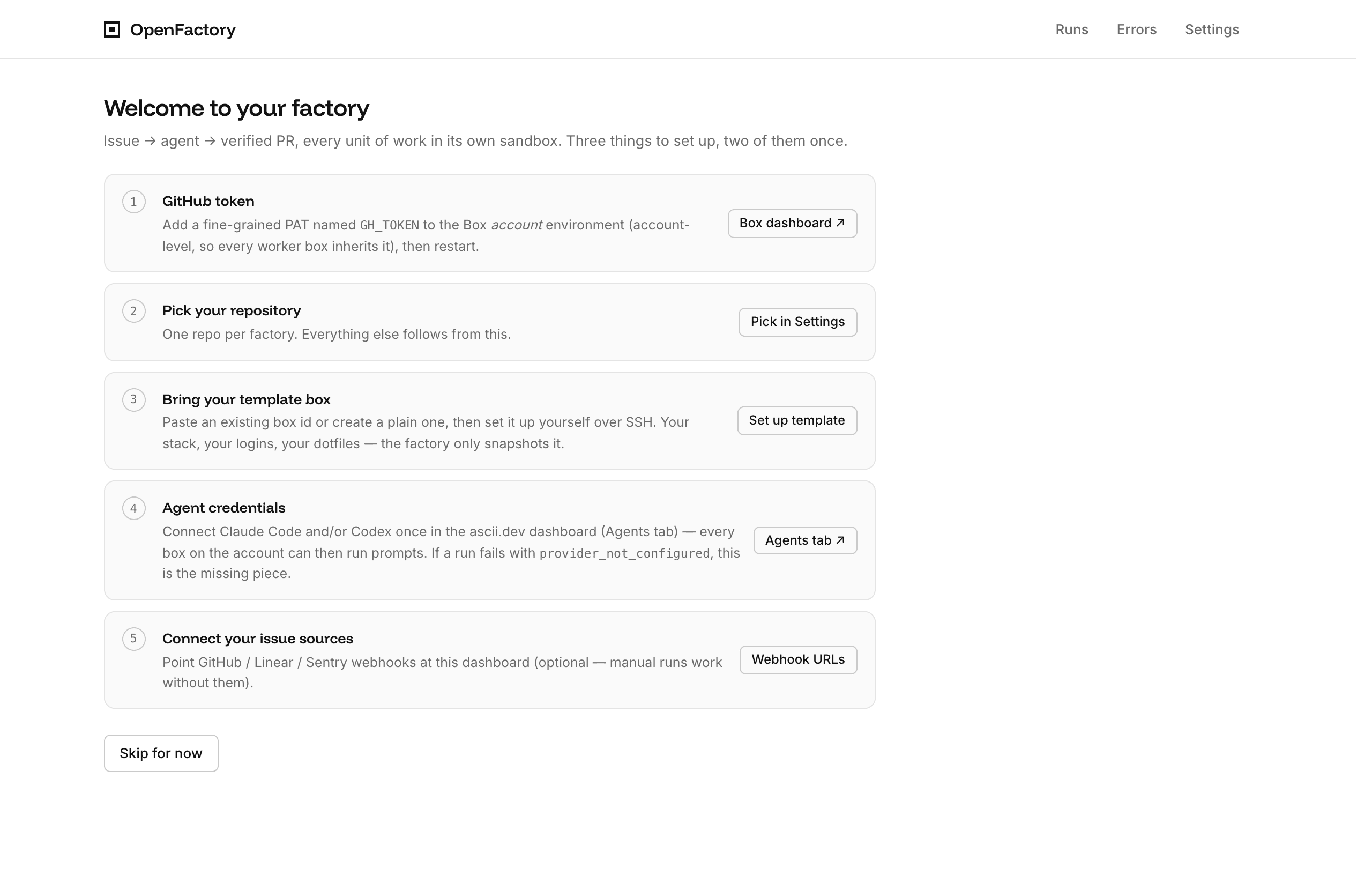
2. Configuring Box account access
Put shared credentials and agent connections at the Box account level. New factory workers inherit that account environment when they start.
The local ASCII_API_KEY used by bootstrap comes from the Box dashboard’s API Keys tab. Create or revoke bootstrap credentials there. A new value appears once, so copy it before leaving the page.
Go to the Environment tab, open its Secrets section, and add the fine-grained token as GH_TOKEN. Give it only:
- Metadata: read
- Contents: read and write for cloning, reading the base-branch head, pushing the run branch, and deleting that branch after merge.
- Pull requests: read and write for opening pull requests, checking mergeability, and merging.
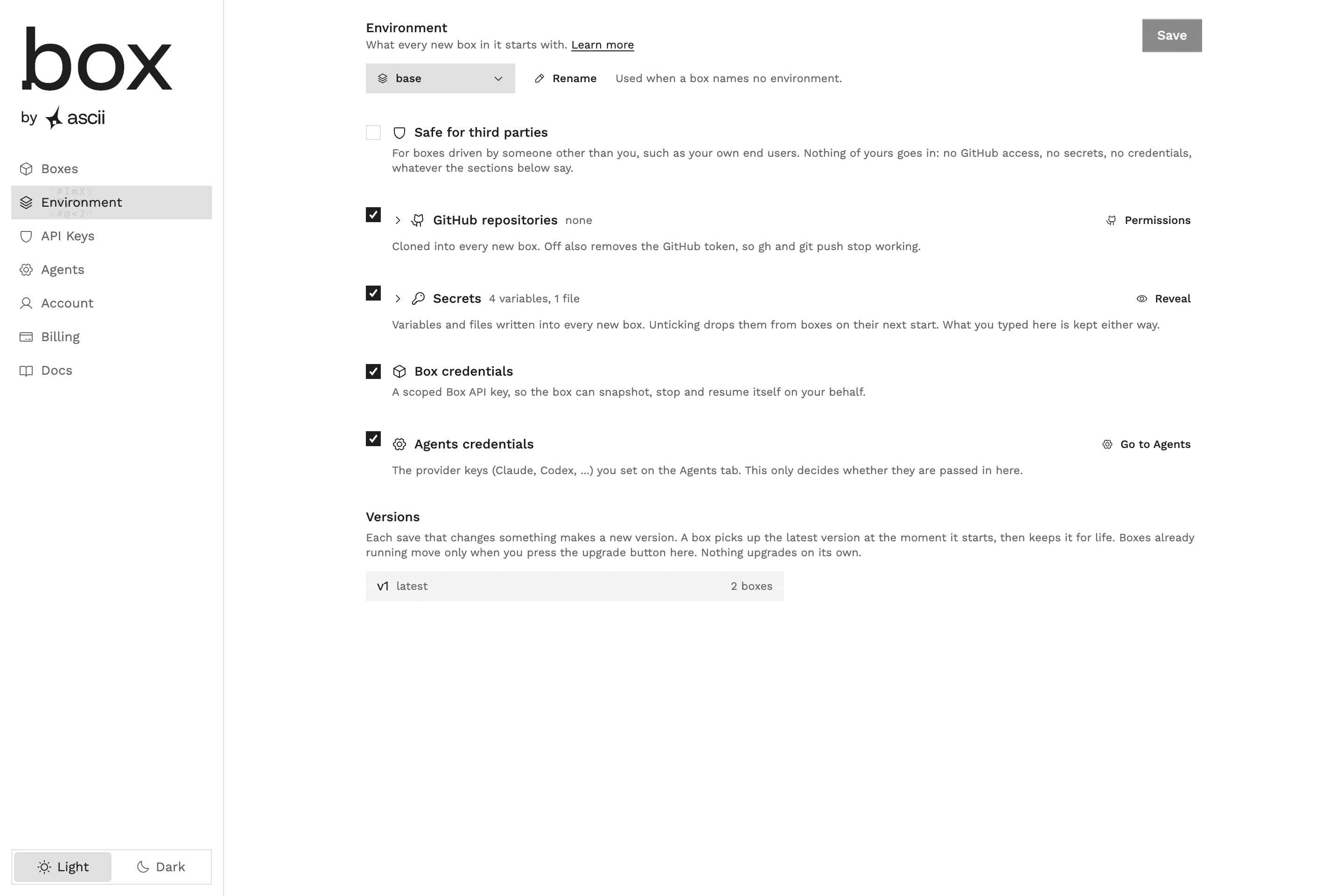
Add GITHUB_WEBHOOK_SECRET, LINEAR_WEBHOOK_SECRET, and SENTRY_CLIENT_SECRET for the sources you will connect. The GitHub webhook signing secret is created in GitHub and stored here; it is separate from GH_TOKEN.
Saving Environment creates a version. A newly started Box takes the latest version; a running Box stays on its current version until you upgrade it.
Open the Box dashboard’s Agents tab and connect Claude Code, Codex, or both. If only one is connected, choose models from that agent family in step 4.
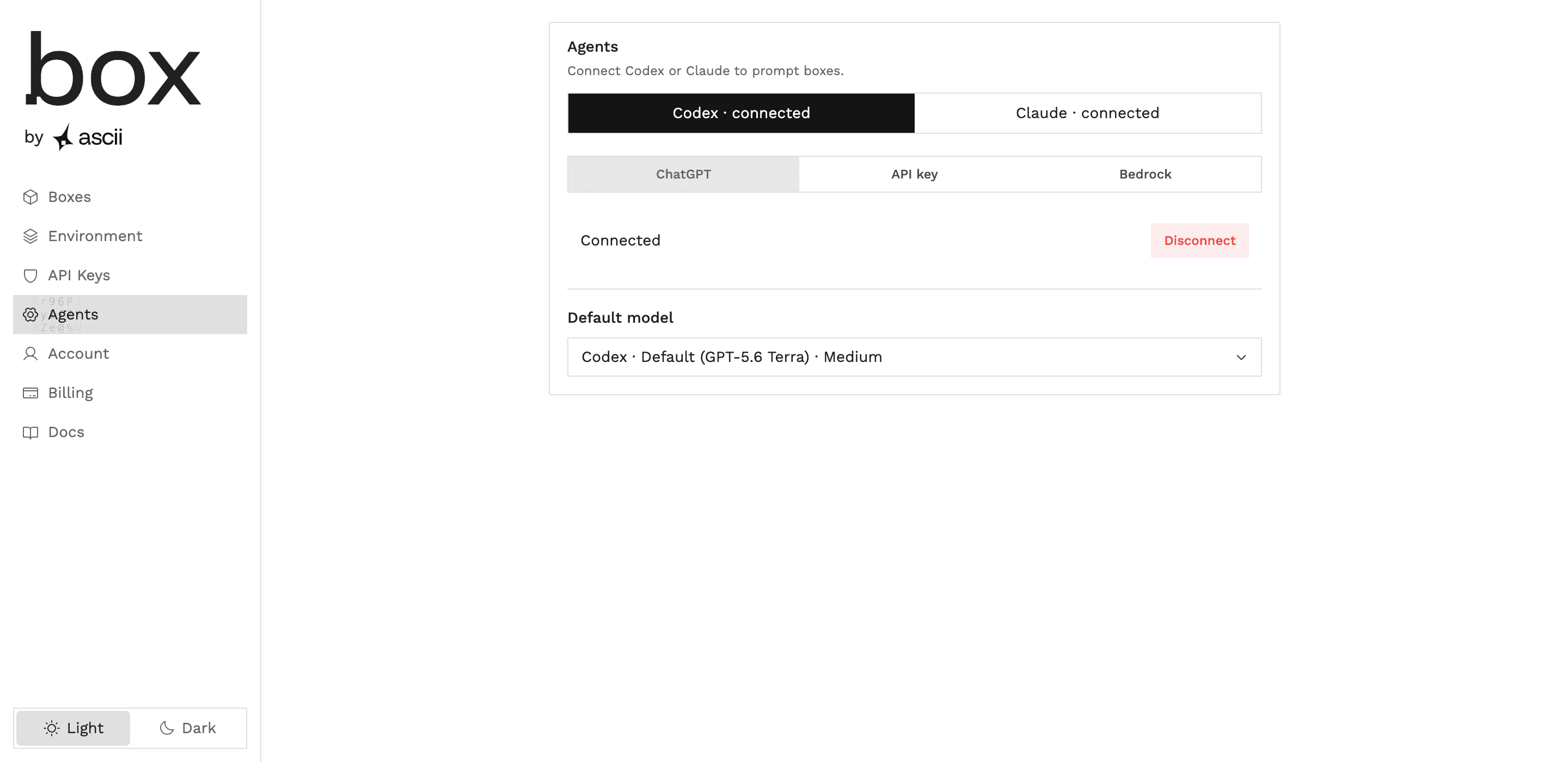
After upgrading the factory Box to the new Environment version, open OpenFactory Settings and click Update from main. On the systemd-hosted factory Box, this fetches origin/main, fast-forwards the factory checkout, verifies the build, and restarts OpenFactory. Active runs resume after the restart.
3. Preparing a template Box
Each OpenFactory instance targets one GitHub repository. For every issue or feature, it forks the template Box’s latest completed snapshot. That produces a build Box and a separate verification Box. Start that template through either route below. Both lead to the same preparation work and the same finalize action in step 4.
Preparing the template means cloning the repository at the configured directory, installing its language and runtime versions and package dependencies, adding its environment files and development logins, and setting up any services, databases, or caches its tests need.
For a Node app, that might mean installing its required Node release, running npm ci, creating a .env.test file, and enabling PostgreSQL with a test schema.
For a Python service, it might mean installing the pinned Python release and project dependencies, logging into a development CLI, and preparing the Redis cache used by its tests.
Using Dashboard UI
In the Box dashboard’s Boxes tab, create a Box for the repository or choose a suitable Box you already own. Copy its id, open it, and use the SSH command shown by the dashboard.
Using CLI
Create a default-size Box with an explicit setup window, then find its id, inspect it, and open an interactive shell. Use small or large instead of default when the repository needs a different machine size.
box new --type default --ttl 3600
box list
box info <template-box-id>
box ssh <template-box-id>
The box ssh command opens the Box for the preparation work. A Box cannot extend its own TTL from that shell. Run either of these commands from your own machine instead:
box extend <template-box-id> --hours 4
box extend <template-box-id> --no-auto-stop
Box preparation
- If it is not already present, clone the target repository inside the Box yourself:
gh repo clone <owner>/<repository> - Install the repository-specific toolchain and dependencies, add the required environment files, log into development tools, and prepare local services, databases, or caches. OpenFactory installs none of these and does not clone the repository for you. Keep secret environment variables in the account environment from step 2.
- Keep GitHub repositories enabled in the Box dashboard’s Environment tab. That setting prepares repository access in every new Box; disabling it removes the credentials used by
ghandgit push. The separateGH_TOKENremains necessary for the orchestrator’s GitHub API calls. - Leave the prepared Box running and keep its id for step 4. Creating or entering it from the CLI does not verify or snapshot it; that action still belongs to OpenFactory.
4. Configuring settings and finalizing the template
Open the OpenFactory dashboard’s Settings page. Choose the GitHub repository and base branch, then paste the id of the template Box prepared in step 3. You can instead click Create plain box, but must prepare that new Box as described above before finalizing it. A plain Box starts with a one-hour TTL; extend it from Settings if setup takes longer. To prepare it from a terminal, use the box ssh and box extend commands under Using CLI. Run those commands from your own machine because the Box cannot extend its own TTL from inside itself.
The factory Box runs OpenFactory itself and never runs builds; the template Box runs no orchestrator and supplies the disk that every build and verification fork starts from.
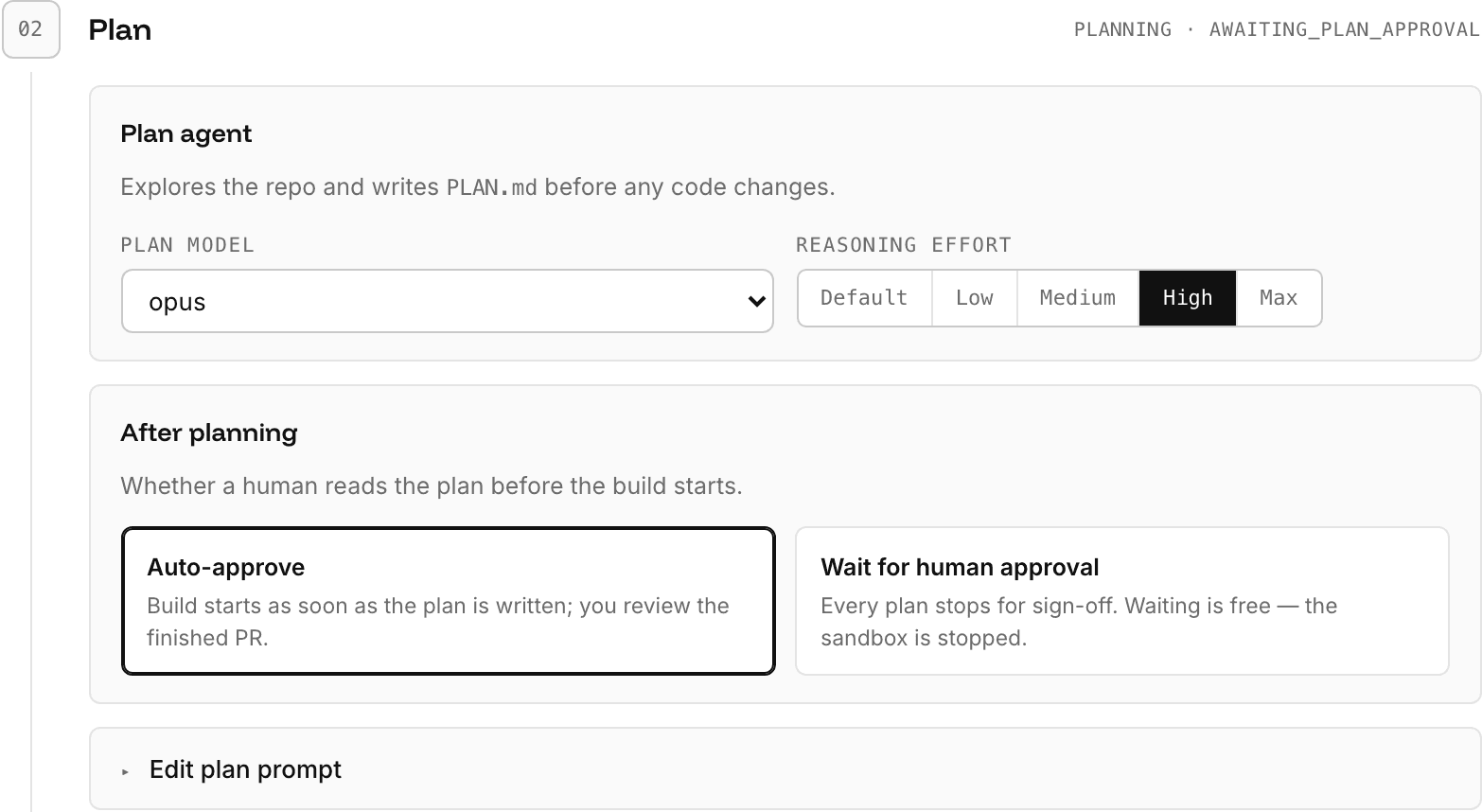
OpenFactory Settings controls:
- The model and reasoning effort for every agent.
- Whether the plan gate is automatic or manual.
- The finding threshold that blocks verification.
- The fix limit and the concurrency limit.
- Each stage’s prompt, editable inline.
When the checkout is ready, click Finalize & save. This Settings action is required whether the Box came from the dashboard or the CLI. Finalize confirms that the configured directory is a Git checkout, configures gh credentials for Git, checks that origin/<base> is reachable, records the current commit, stops the Box, and waits for the new snapshot to complete.
That stopped, user-owned Box becomes the source snapshot for every build and verification fork. When a PR merges or a base-branch poll detects a new head, OpenFactory marks the template stale. At the next quiet moment, it resumes the Box, refreshes the base branch with the commands below, stops it, and waits for the next snapshot to finish. A failed pull leaves the Box running for you to repair over SSH.
git checkout -f <base>
git pull --ff-only origin <base>
The refresh does not reinstall dependencies. If the repository needs extra upkeep, add an enabled systemd service inside the template Box. Enabled services survive stop and resume; processes started by hand do not.
5. Connecting sources and testing a run
OpenFactory comes with GitHub, Linear, and Sentry issue sources. You can add more under Adding input sources.
GitHub
- In the configured repository, open Settings, Webhooks, then Add webhook.
- Paste the full OpenFactory
/webhooks/githubURL into Payload URL and choose application/json as the content type. - Generate a signing secret, enter it in GitHub’s Secret field, and store the same value as
GITHUB_WEBHOOK_SECRETin the Box account Environment. - Choose Let me select individual events, subscribe only to Issues, leave the webhook active, and add it. OpenFactory accepts the
openedaction and ignores other issue actions.
Linear
- As a workspace admin, open Settings, Administration, API, then create a new webhook.
- Paste the full OpenFactory
/webhooks/linearURL, choose the team scope you want, and subscribe only to Issues. - Save the webhook, copy its signing secret from the webhook detail page, and store it as
LINEAR_WEBHOOK_SECRETin the Box account Environment. OpenFactory accepts only payloads with typeIssueand actioncreate.
Sentry
- In Sentry, open Settings, Developer Settings, then create a new internal integration.
- Paste the full OpenFactory
/webhooks/sentryURL into the integration’s Webhook URL field and subscribe to theissue.createdevent only. - Save the integration, copy its Client Secret, and store it as
SENTRY_CLIENT_SECRETin the Box account Environment. OpenFactory checks the resultingSentry-Hook-Signaturebefore accepting the issue.
After adding or changing a secret, upgrade the factory Box to the saved Environment version, then use the Update from main control in OpenFactory Settings as described in step 2. It updates the factory checkout and restarts OpenFactory so the process imports the new values. GitHub deliveries from repositories other than the selected repository are rejected, and duplicate deliveries are deduplicated. Triage compares each signal with recent runs and uses a local repository checkout when it is available. A triage error admits the work instead of dropping it.
Every input issue from GitHub, Linear, Sentry, or a manual request appears in the Issues tab with triage’s decision. Skipped signals stay there with the reason they were skipped. The Runs tab contains only the work triage admitted. For the first test, you can skip webhooks: open Issues, describe a small bug or chore under Start a manual run, and submit it. Triage gives a manual request its title and rationale but always admits it.
How OpenFactory works
How work goes from issues to PRs
GitHub, Linear, and Sentry webhooks and manual requests all pass through triage; admitted work then follows these stages:
- Admitted issue. A webhook signal that triage accepts, or any manual request, enters the run.
- Planning. The planning agent writes
PLAN.mdandPLAN_META.json. If the plan gate is manual, the build Box stops until a person approves or rejects the plan. - Building. The builder leaves a successful result and at least one commit on an
openfactory/<run>-<slug>branch. The branch is still local at this point. - Verification. A fresh Box receives the committed branch and reruns the project checks before writing a structured verdict.
- Review decision. A blocking verdict enters the fix loop and returns to building for another commit and review, up to the configured fix limit. A non-blocking verdict continues to the pull request.
- Pull request. OpenFactory pushes the reviewed branch and opens a normal GitHub pull request.
Working with Isolated Sandboxes
Orchestrator, queue, plan approvals, and triage prompt
No auto-stop; no worker TTLPristine, repository-ready starting disk
Reviewed run branch and pull request
Planning, building, testing, and fix rounds
TTL extends per active phaseIndependent review, then PR delivery after resume
Fresh fallback fork if resume is unavailableThe orchestrator and triage agent run on the same always-on Box, we call the factory Box.
Each issue that passes through triage receives a new build Box. When built, verification starts from a second Box which receives the committed branch as a Git bundle to run code review and QA.
Both worker Boxes fork from the template Box’s latest completed snapshot, so the build and verification Boxes always start with the repository and toolchain already prepared instead of installing them for each run.
The orchestrating agent handles the pause and resume of all sandboxes so you are not billed when a Box is not doing work.
The orchestrating agent uses the Box prompt API to run Claude Code or Codex inside the worker Boxes.
Adapting it to your team
OpenFactory is built to give you good defaults. Your software factory will need to adapt to your monitoring sources, prompts, review rules, and QA checks for your repository.
Here are some ideas on things to build to extend the OpenFactory template:
Adding input sources
GitHub, Linear, and Sentry are the default inputs that come built in. Add the sources your team actually uses, such as a support inbox, scheduled audit, Slack command, or another alerting system, and map each signal into the same issue-shaped work queue.
Changing prompts and models
The dashboard lets you edit the triage, plan, build, review, fix, and merge prompts. Changes apply when the next phase starts, without restarting or redeploying OpenFactory. Use them to name repository-specific commands, planning requirements, test expectations, and commit rules.
You can also change the model and reasoning effort for triage, planning, building, and review. Fix rounds and merge-conflict work use the build model and effort. Choosing a model selects its provider, so there is no separate provider setting.
Review rules
Tighten the review prompt around the risks your codebase carries: migrations, permissions, compatibility, performance, or security. Set verification to block on any finding when even minor defects should trigger another fix round. A factory that needs static analysis or security scanning can add those checks to the review prompt before a branch becomes a pull request.
Tests and checks
The review agent reruns the test suite and tries edge cases in the verification Box. Put any browser, API, integration, accessibility, security, or end-to-end commands the repository needs into the review prompt, and prepare their dependencies in the template Box.
Run notifications
Notifications are an extension. The append-only event stream records approvals, failures, PR creation, and merges, so a separate Slack or email worker can deliver the events your team cares about without changing run state.
Take the OpenFactory repository on GitHub and adapt it to your team.